Examples use fictional customers, accounts, and orders. This guide covers the current release candidate; marketplace publication is pending.
A quick tour
Start here
Invoice Bridge connects the sale, the invoice, and the payment. Your salesperson works from a Pipedrive deal. Your customer pays through Shopify checkout. The result stays with the right customer record.
An administrator connects one Shopify store and one Pipedrive company, reviews the company service agreement, chooses the app plan, and matches the products. Use First invoice setup on the intended deal to check the setup and all missing product matches.
Each salesperson authorizes their own Pipedrive user, then opens an eligible deal, checks its products and customer email, and creates an invoice.
Review the amount, tax treatment, shipping, and any discount. Get approval if your company requires it.
Review the recipient and choose Send invoice to customer. Retype the address only if your administrator has enabled that check.
After payment, check the original deal for its payment history and Won status. For deposits, follow the completion rule set for that plan.
You need a Shopify store, a Pipedrive company, and the right to install apps in both. Start from the approved installation link for your workspace. Marketplace installation becomes available after the app is approved and published.
Install Invoice Bridge in Shopify and open the app as the store owner or an authorized administrator.
Choose Connect Pipedrive. Sign in to the company you want this store to use, review the requested access, and finish authorization.
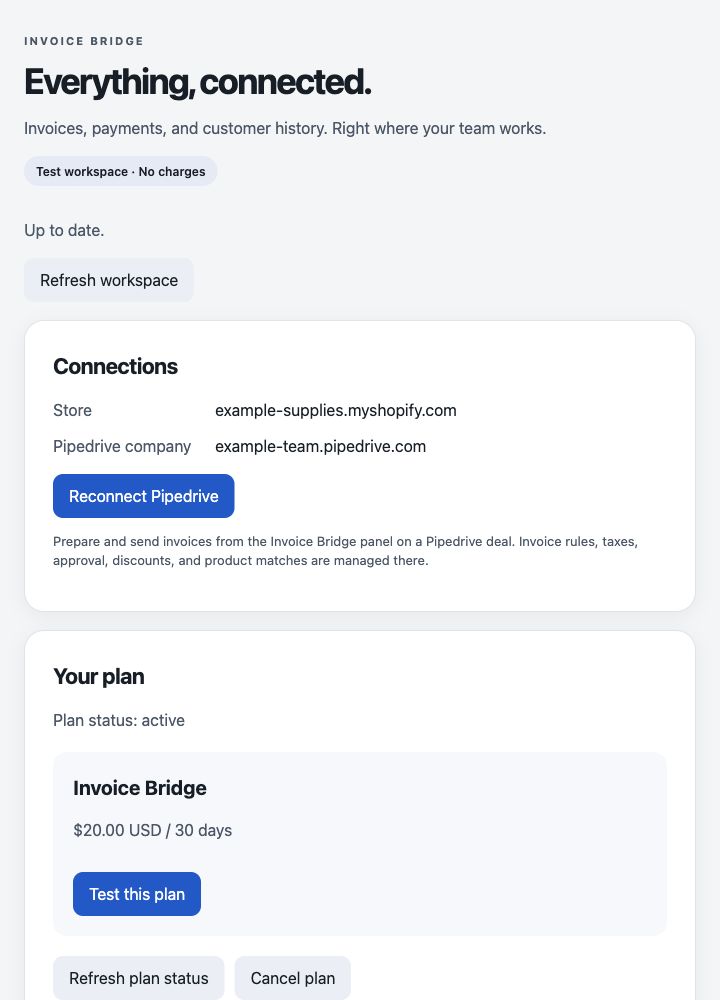
Check the Store and Pipedrive company shown in Connections. Both must be the intended accounts.
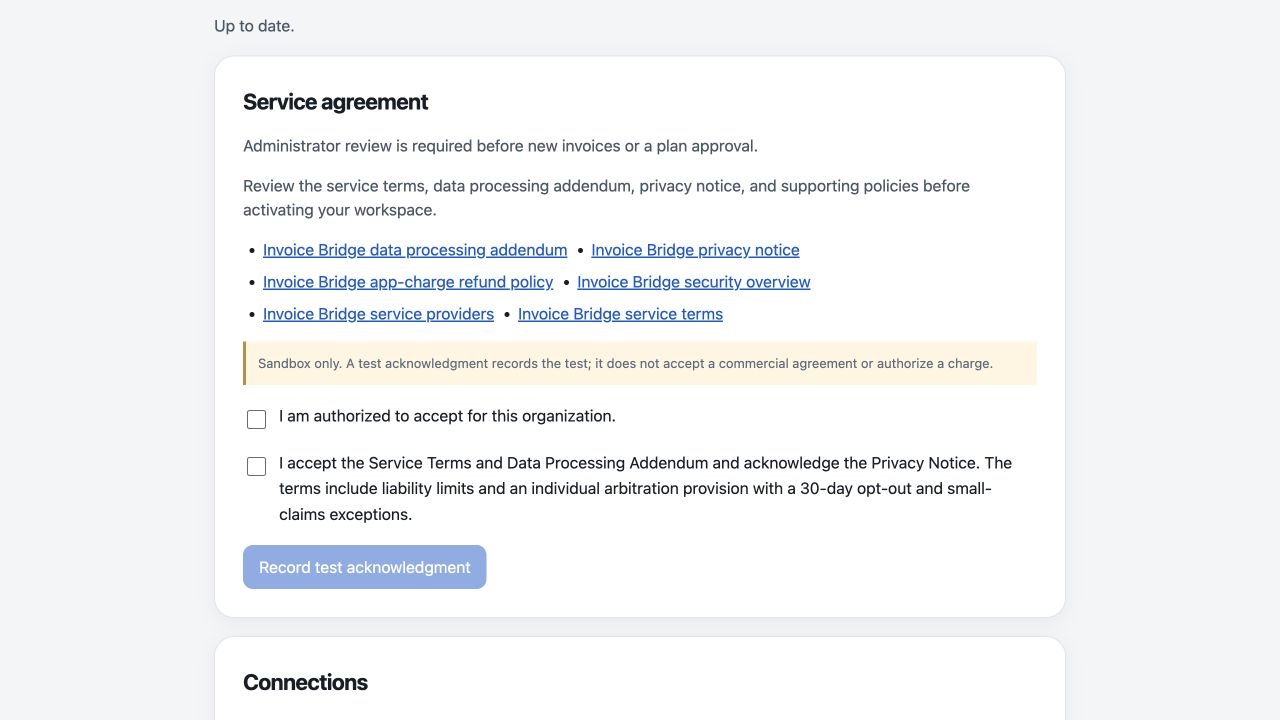
Review the Service agreement section. A current Pipedrive administrator or the Shopify store owner accepts for the organization before activating new invoice actions or approving a plan.
Choose the app plan and review it in Shopify. Billing is handled through Shopify even if you discovered the app in Pipedrive.
Open a Pipedrive deal and expand the Invoice Bridge panel. Invite team members to authorize their own users using the same app installation link. Administrators can open Settings from the panel.
Company acceptance belongs to a current Pipedrive administrator or the Shopify store owner. Salespeople cannot accept or change the service terms for the company.
Open Invoice Bridge app settings and confirm the connected store and company.
Read the Service Terms, Data Processing Addendum, Privacy Notice, refund policy, security overview, and service-provider list. You can print or save each document.
Confirm that you are authorized to accept for the organization. Check the separate acceptance box, then choose Accept for this organization. Neither box is preselected.
Choose Download acceptance receipt to save the version, document hashes, verified administrator, and acceptance time. A receipt applies only to that connected workspace.
If a material new version is published, an administrator reviews it again before new invoices, invoice sends, or a new plan approval. Existing payment reconciliation, cancellation, and privacy requests continue.
Company agreement review in a fictional sandbox. Test acknowledgments do not accept a commercial agreement or authorize a charge. Select the image for a larger view.Next: Give each teammate access →
Administrator and salesperson
Give each teammate access
The company is connected once by an administrator. Every person who uses the Pipedrive panel then authorizes their own app access. There is no per-user app fee.
Administrator: connect the store and Pipedrive company first. Keep the company’s service installer account active.
Teammate: open the approved Invoice Bridge installation link while signed in to the intended Pipedrive company. Review and authorize your own user.
Reload your Pipedrive browser tab after authorizing the app. Open a deal you can access and expand Invoice Bridge. Your Pipedrive membership and role are checked again when you use the panel.
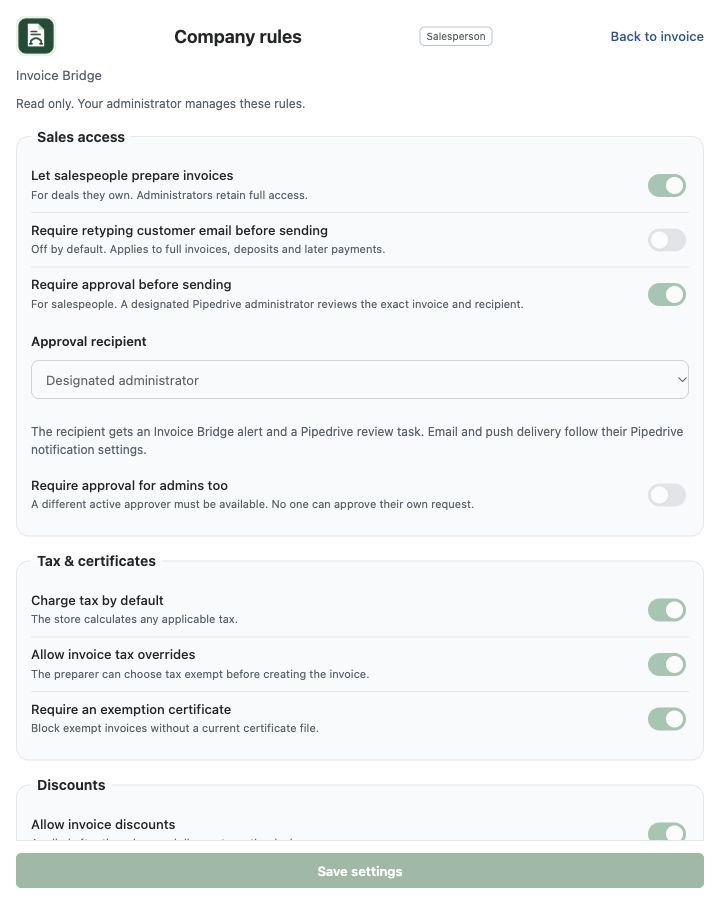
Open Company rules to see the team’s limits. The controls are locked for salespeople; account setup, billing, privacy, audit, and recovery remain administrator tasks.
If invoice access is off, you can still view your own deal’s invoice and payment history. Ask an administrator to change the policy.
Salespeople can read company rules. Only a current Pipedrive administrator can change them. Select the image for a larger view.Next: Choose where records go →
Administrator setup
Choose where records go
Use dedicated Pipedrive custom fields for commerce information so the app can add invoice and payment details without taking over your existing notes.
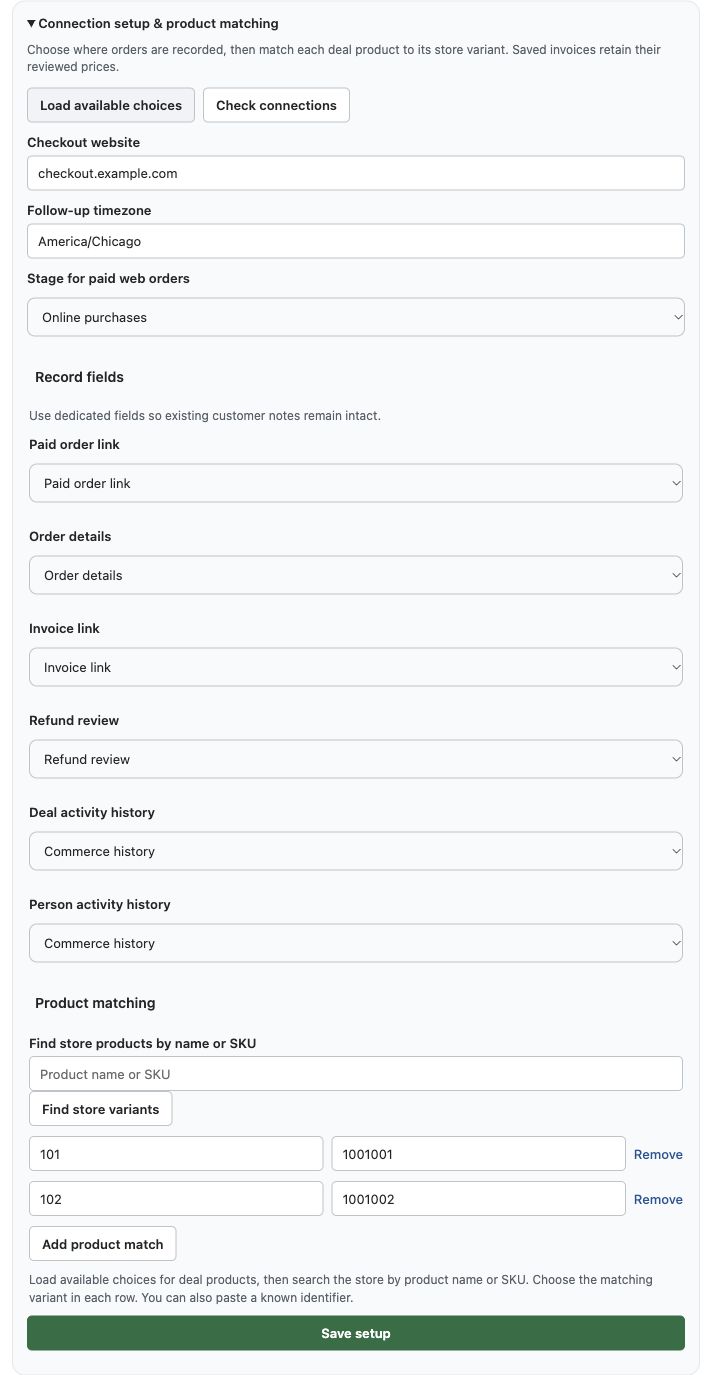
Open Settings, then Connection setup & product matching. Choose Load available choices.
Select a stage for paid web-order deals. Set the follow-up timezone used for task due dates.
Choose a separate field for each purpose: paid order link, order details, invoice link, refund review, deal commerce history, and person commerce history. Link/review fields use text on one line; detailed history fields use longer text.
Enter the approved checkout hostname. Your store must already have that hostname connected and working over HTTPS.
Save setup, then choose Check connections. Resolve any item that says Needs setup before sending an invoice.
Select the checkout website, timezone, web-order stage, and dedicated fields. Select the image for a larger view.Next: Match your deal products →
Administrator setup
Match your deal products
Each Pipedrive product used on an invoice needs a matching Shopify variant. The app uses the deal’s quantities and net prices when it creates the invoice.
Import your Shopify products into Pipedrive with ChatGPT or Claude
Use ChatGPT or Claude to prepare the spreadsheet. A team member with import permission reviews it and uploads it to Pipedrive.
Export a small batch. In Shopify, go to Products and choose Export. Start with a few products, including one with variants. Keep the product and variant details you need and remove sensitive columns before uploading.
Prepare the import file. Attach the product CSV to ChatGPT or Claude and paste the prompt below. Compare the result with the Shopify export and your existing Pipedrive products. Leave existing products out of the new-product import.
Import into Pipedrive. Open Tools and apps → Import data → Import from spreadsheet. Map Name, Product Code, Price, and Currency to the Product fields. Check the preview before importing and confirm the products are in your catalog.
Match your products. Once the import looks right, follow the Invoice Bridge matching steps below.
Prompt for ChatGPT or Claude
Prepare an import spreadsheet for the Pipedrive product catalog using this Shopify product CSV. Use one row per sellable variant. Make each name clear by adding variant options where needed. Use the variant SKU as Product Code and preserve it exactly, including leading zeros. Use the variant’s selling price and the currency I confirm. Create columns named Name, Product Code, Price, and Currency. Keep Product Code as text in the XLSX file, or give me CSV if XLSX is unavailable. List missing or duplicate SKUs and unclear prices separately for review. Leave those rows out of the import file. Ask me before making assumptions.
Download sample CSV The rows show fictional products and variants. Replace them with your own products before importing.
In Settings > Connection setup & product matching, choose Load available choices.
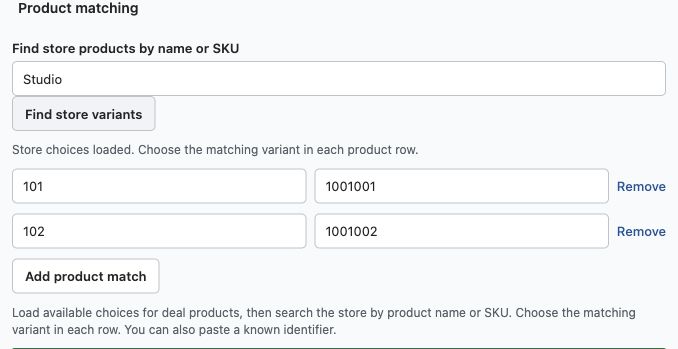
Under Product matching, search the store by product name or SKU and choose Find store variants.
Choose Add product match. Select the Pipedrive product and matching Shopify variant. You can also paste known product and variant IDs.
Repeat for each product your team will invoice. Remove any empty rows, then choose Save setup and Check connections.
Open a small test deal and compare product names, quantities, prices, and currency before sending the first invoice.
Map each deal product to the store variant that represents the same item. Select the image for a larger view.Next: Get your first invoice ready →
Administrator setup
Get your first invoice ready
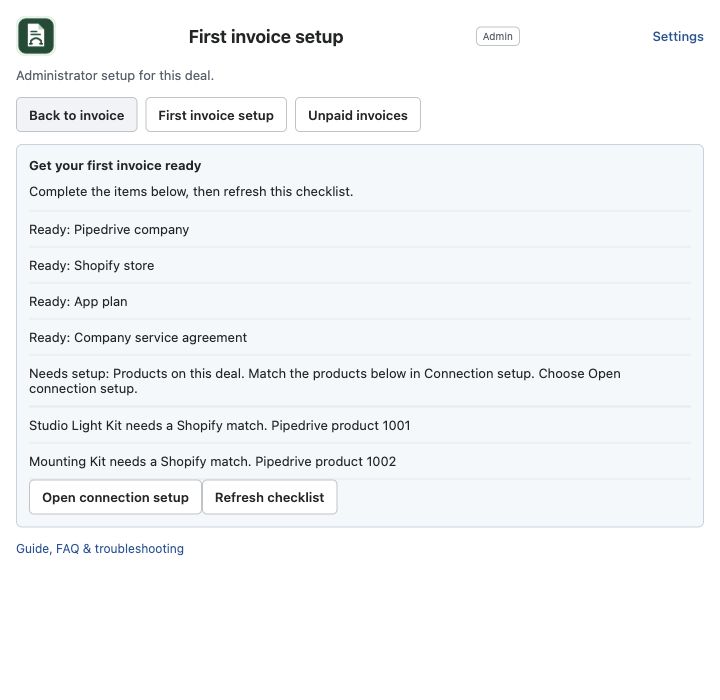
Open a deal you want to invoice and choose First invoice setup. The checklist checks this connected company and the products on this deal.
Review the connection, checkout, record-field, processing, app-plan and service-agreement results. The public app includes the current plan and agreement checks.
Review every product listed under missing matches. The product name and Pipedrive product ID identify which match to add, including product variations.
Choose Open connection setup to go straight to the expanded setup section. Save the correct product matches and other setup choices.
Return to the invoice and choose First invoice setup, then Refresh checklist. A plan or service-agreement item is completed by an administrator or store owner in Invoice Bridge in Shopify.
When the checks pass, choose Back to invoice. Review tax, certificates, discounts, the recipient and any required approval before sending.
The administrator can see all missing product matches for the selected deal and open the setup section directly. Select the image for a larger view.Next: Add products before invoicing →
Salesperson walkthrough
Add products before invoicing
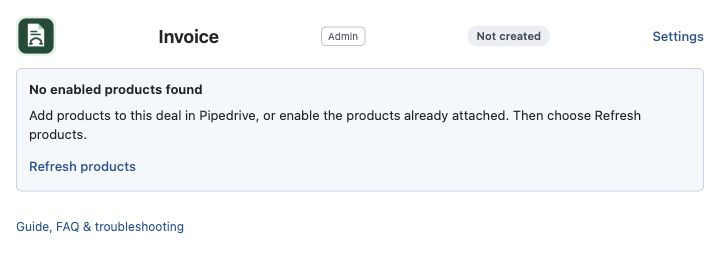
An empty deal has a clear starting point. Invoice Bridge shows No enabled products found until there are products it can invoice.
Add products to the deal in Pipedrive, or enable products that are already attached.
Return to Invoice Bridge and choose Refresh products. The product list and invoice controls appear when the products are ready.
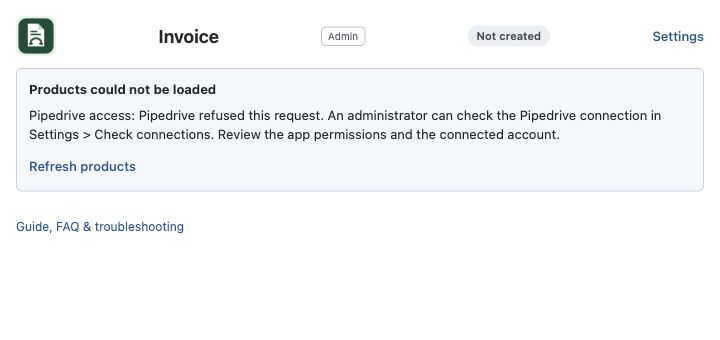
If the panel says Products could not be loaded, read the cause shown below it. A connection or product-matching issue needs its own check; it does not mean the deal is empty.
An empty deal shows the next step without displaying a broken invoice form. Select the image for a larger view.Next: Create an invoice from a deal →
Salesperson walkthrough · 1
Create an invoice from a deal
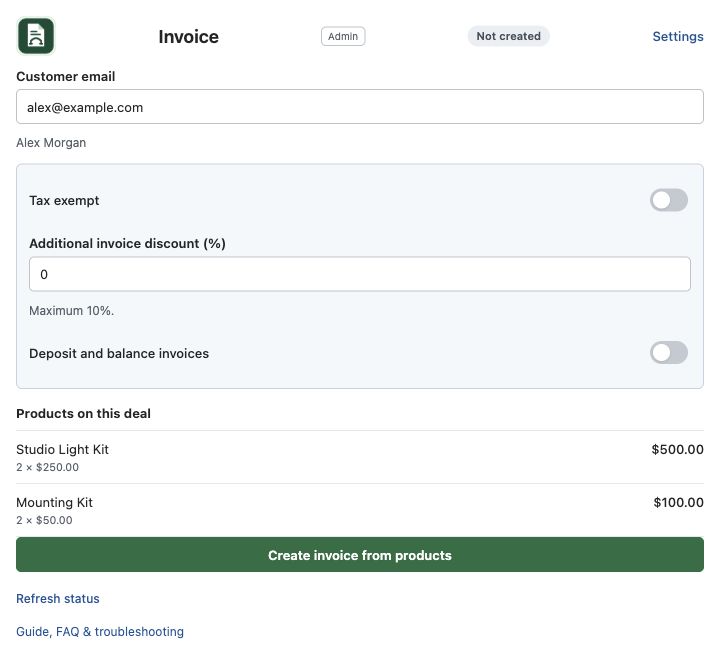
Open the customer’s Pipedrive deal and expand Invoice Bridge. Start with the products already attached to that deal.
Check the customer email. The linked person can supply the starting address, but you still need to verify it.
Review the products, quantities, and prices. Correct the deal products first if they are wrong.
Choose the tax treatment and any extra discount your administrator allows. Leave Deposit and balance invoices off for a standard invoice.
Choose Create invoice from products.
Wait for the invoice preview. Creating the draft does not send an email.
Review the recipient, invoice options, and deal products before creating the draft. Select the image for a larger view.Next: Review the draft and recipient →
Salesperson walkthrough · 2
Review the draft and recipient
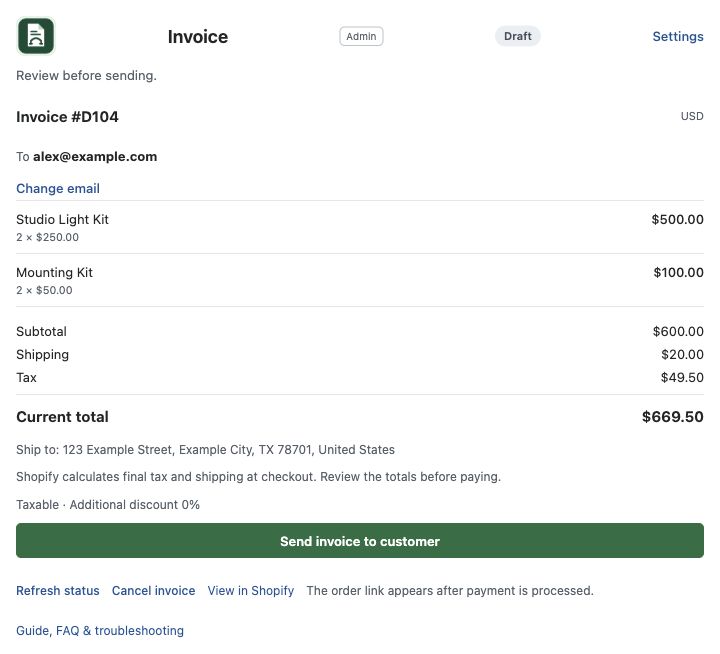
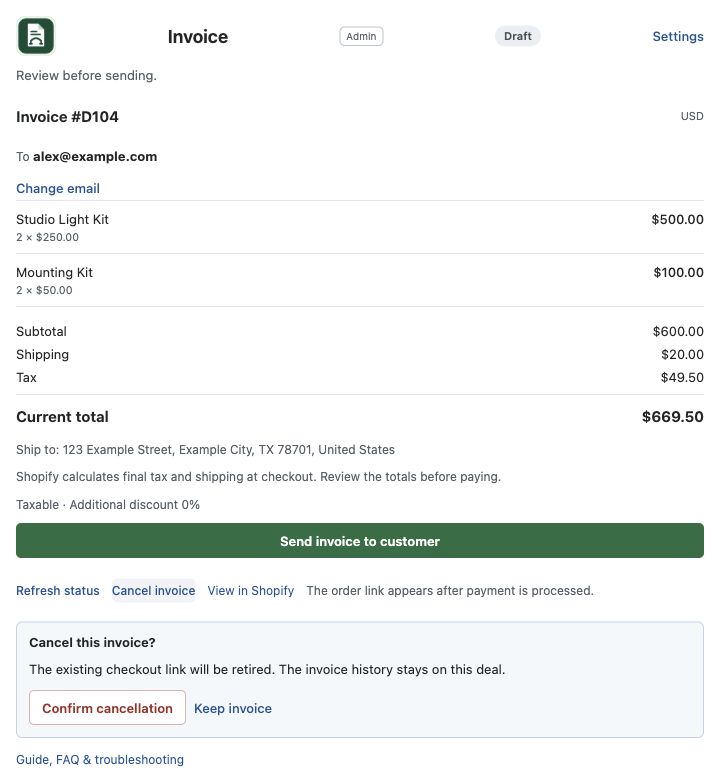
The draft is your last chance to check the customer-facing invoice before sending it.
Compare the preview with the agreement: customer email, product quantities, net prices, shipping, tax, and current total.
Use Change email if this invoice needs a different recipient. Save the correction and review the refreshed draft.
If the products or invoice policy changed, refresh the panel. The app may require a fresh review or approval.
If approval is required, request it before sending.
When the draft is correct, choose Send invoice to customer.
The preview shows the actual draft totals and who will receive the invoice. Select the image for a larger view.Next: Send the invoice →
Salesperson walkthrough · 3
Send the invoice
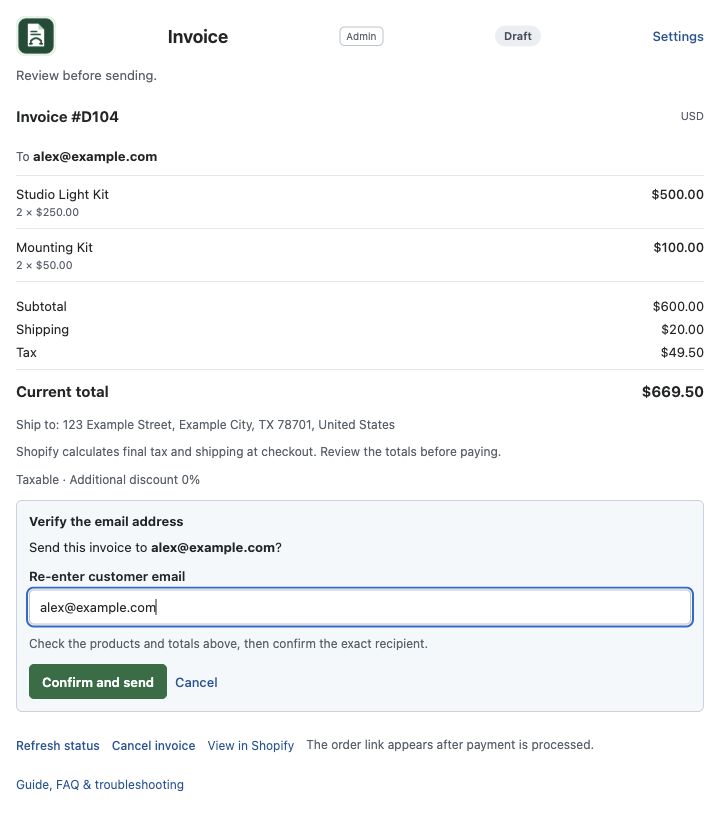
Review the customer email and totals, then choose Send invoice to customer. Email retyping is off by default. Your administrator can turn it on for the company.
Check the recipient, products and totals in the draft. Choose Send invoice to customer to send the reviewed invoice.
If Verify the email address appears, your administrator has enabled the extra email check. Type the address shown in Re-enter customer email, then choose Confirm and send. The button stays disabled until the addresses match.
Look for Sent in the panel. The deal history receives an Invoice Sent entry and a printable invoice copy.
If the invoice changed, refresh status and review the current recipient and totals before sending again. Any required approval still applies.
If the panel says Sending or that delivery is being checked, refresh status and ask an administrator to inspect the result before trying anything else.
The optional email check when enabled. It is off by default and applies to full invoices, deposits and later payments. Select the image for a larger view.Next: Copy the customer payment link →
Salesperson and administrator
Copy the customer payment link
Use Copy customer payment link on a sent invoice that is still unpaid. Use it when a customer asks for the payment link during your own follow-up.
Open the original Pipedrive deal and refresh invoice status. On an active payment plan, open the current sent payment invoice.
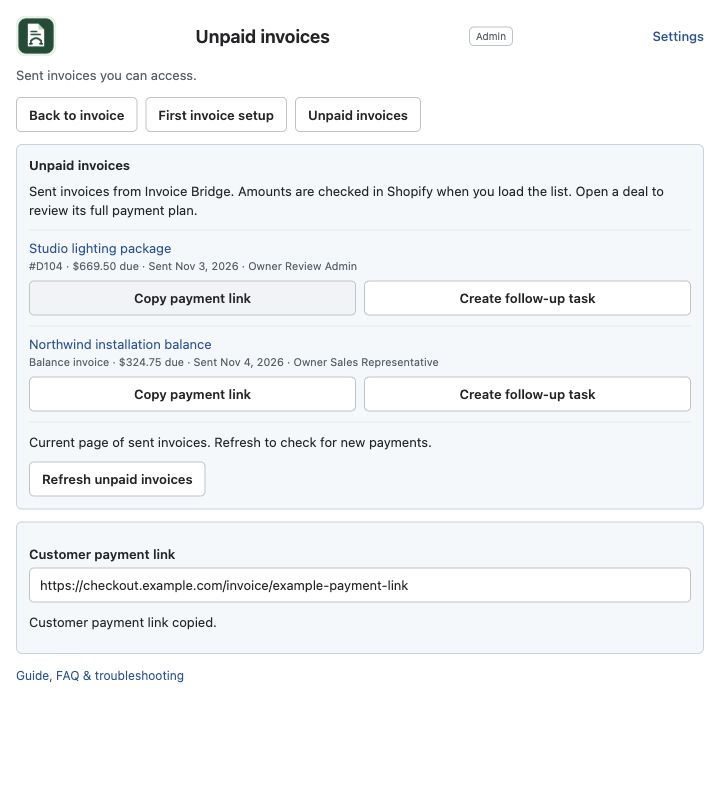
Choose Copy customer payment link. The app checks Shopify again and validates the configured checkout website before returning the link.
Paste the link into your own customer message. If your browser blocks clipboard access, select and copy the link shown in Customer payment link.
Use Open invoice in Shopify or Open paid order in Shopify to inspect the merchant record. Those buttons open the store administration pages.
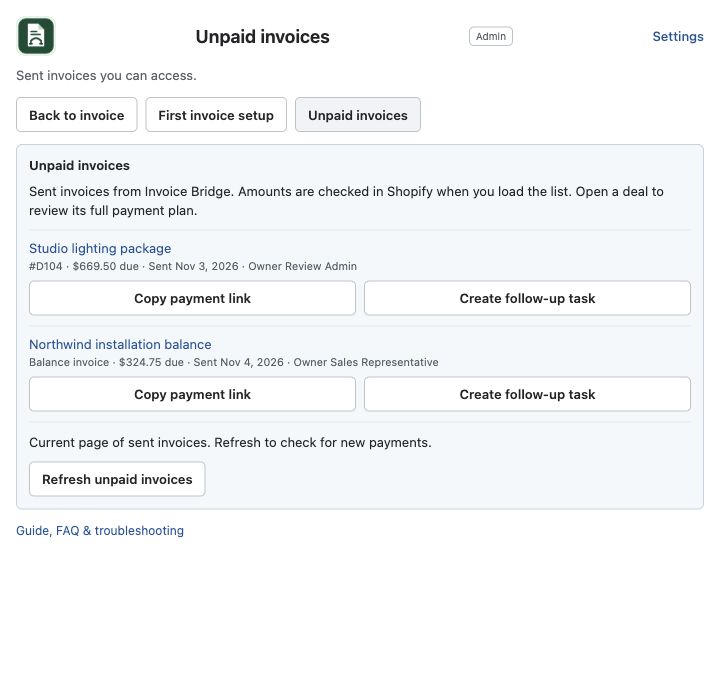
Choose Unpaid invoices in the deal panel to review invoices sent through Invoice Bridge. Administrators can review company deals. Salespeople see deals they currently own.
Review the invoice, current amount due, sent date and current deal owner. The list checks Shopify when loaded and shows up to 15 deals on each page. Choose Next page when available.
Choose the deal title to open its original record. The amount shown is for the current sent invoice. Open the deal to review the full deposit plan and remaining product balance.
Use Copy payment link to get a fresh customer link. Use Create follow-up task to assign a task to the current active deal owner, due today in the company’s configured timezone.
The app creates one follow-up task per invoice. Repeated clicks return the existing task. Reschedule or complete that task in Pipedrive for later follow-up.
Choose Refresh unpaid invoices after payment processing. A row that says Check payment status needs a status or administrator review and offers no link or follow-up action.
Sent invoices, current amounts and owners are shown with payment-link and follow-up actions. Select the image for a larger view.Next: Request invoice approval →
Salesperson walkthrough
Request invoice approval
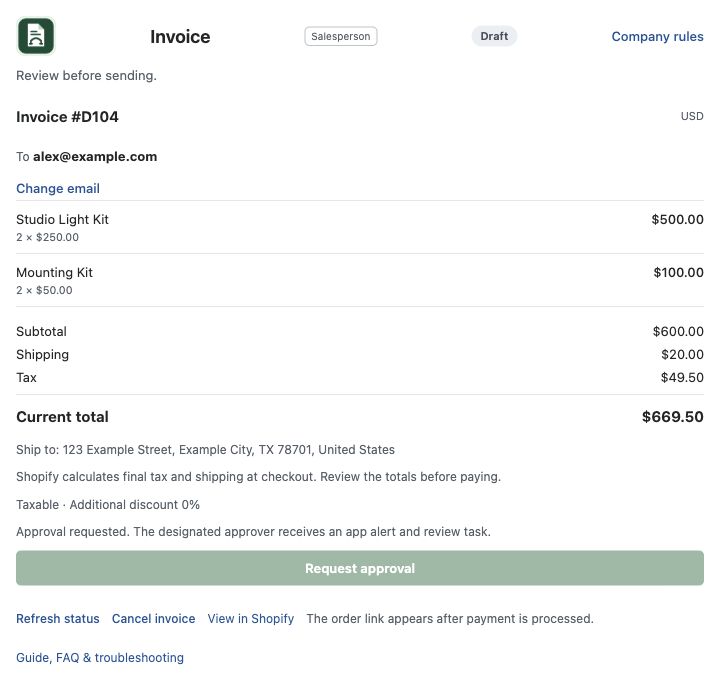
When approval is enabled, a designated current Pipedrive administrator reviews the exact draft and recipient. The request stays tied to that version of the invoice.
Review the draft products, quantities, totals, tax, discount, and recipient.
Choose Request approval. Repeated clicks do not create another request for the same version.
The selected approver receives an Invoice Bridge alert and an assigned Pipedrive review task. Send stays unavailable while the request is pending.
Refresh status after the decision. If approved, review the recipient and send. Retype the email only if your administrator has enabled that check. Approval does not send the invoice automatically.
If the draft, recipient, or company policy changes, review the current version and request a fresh approval.
A salesperson sees the approval requirement on the draft. Only administrators can change the rule. Select the image for a larger view.Next: Review an invoice request →
Designated approver
Review an invoice request
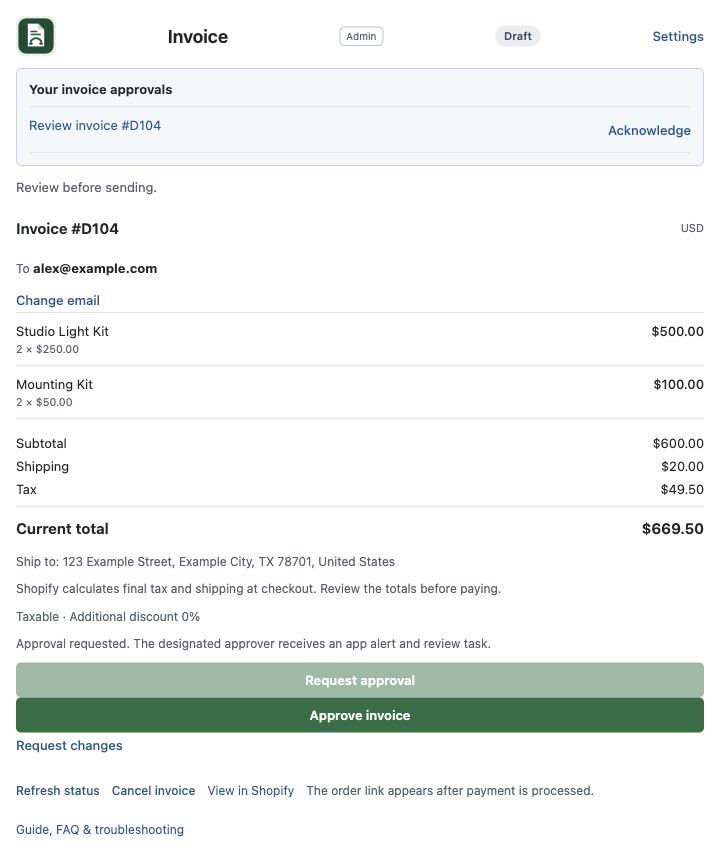
Open the Invoice Bridge alert or your assigned Pipedrive review task. Review the draft in the deal before deciding.
Open the linked deal and check the invoice number, customer email, products, totals, and any certificate.
Choose Approve invoice if the current version is correct. Only the selected current admin, or a current admin in the shared queue, can decide.
To send it back, choose Request changes and enter a short reason.
The preparer receives an app notice and a Pipedrive decision task. The original review task is marked complete after a successful decision update.
The salesperson still confirms the recipient and sends the invoice. Your decision does not email the customer.
The designated admin reviews the current draft and either approves it or requests changes. Select the image for a larger view.Next: Handle a request for changes →
Salesperson
Handle a request for changes
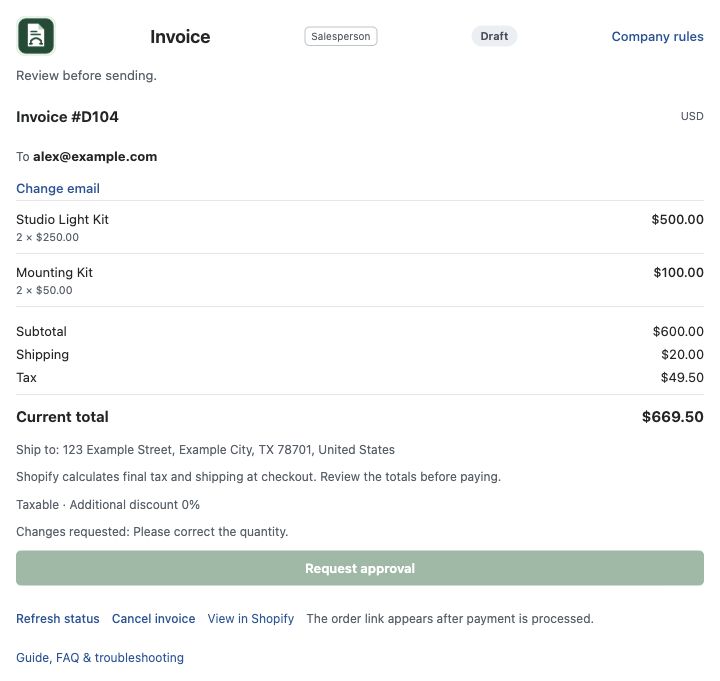
A declined invoice stays unsent. Read the reason, correct the issue, and submit a new version for review.
Read the Request changes reason in the invoice panel or decision task.
For a wrong recipient, use Change email, save the correction, and review the updated draft.
For wrong products or quantities, cancel the unpaid invoice, correct the deal products, then create a replacement.
Review the new version and choose Request approval again. The unchanged declined version cannot be resubmitted.
After approval, verify the recipient email and send. Keep the previous invoice and decision in history.
Your administrator sets the defaults and limits. Preparers can use only the options that have been enabled for them.
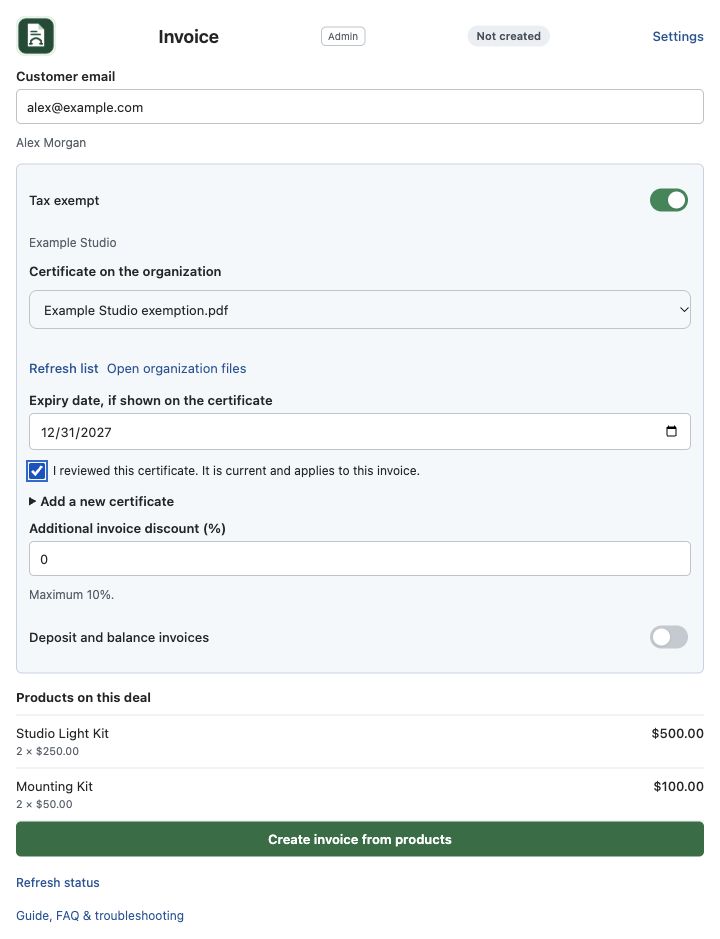
Use Tax exempt only when the customer’s exemption has been verified for the sale. If the option is locked, ask an administrator.
Choose Certificate on the organization. Invoice Bridge lists PDF, PNG, and JPEG files attached to the organization linked to this deal. Open organization files to review the document, then select it. You do not need to upload it again for another invoice.
Check its expiry date and confirm that you reviewed the certificate and that it is current and applies to this invoice. A saved expiry carries forward. Admins can correct an incorrect recorded date here without uploading the file again. Salespeople use the saved date. This confirmation is required whenever you select an organization certificate.
If no suitable file is on the organization, expand Add a new certificate. Choose a PDF, PNG, or JPEG up to 1 MB, enter its expiry if applicable, and choose Save to organization. Review and confirm the saved file. Other deals linked to this organization can reuse it.
Enter an additional invoice discount percentage if discounts are enabled. Stay within the administrator’s limit.
Create and review the invoice. The extra discount is applied after discounts already reflected on the deal.
The invoice keeps the selected organization file reference and the preparer’s confirmation. Open Organization certificate to find it later. Older certificates saved only with an invoice still use Download certificate, then Save certificate within 60 seconds.
Choose and confirm a certificate already on the organization. Add a new one only when needed. Select the image for a larger view.Next: Check payment on the original deal →
After the customer pays
Check payment on the original deal
The customer pays through Shopify checkout. Invoice Bridge uses the verified payment and invoice reference to update the original deal.
Open the same Pipedrive deal and choose Refresh status.
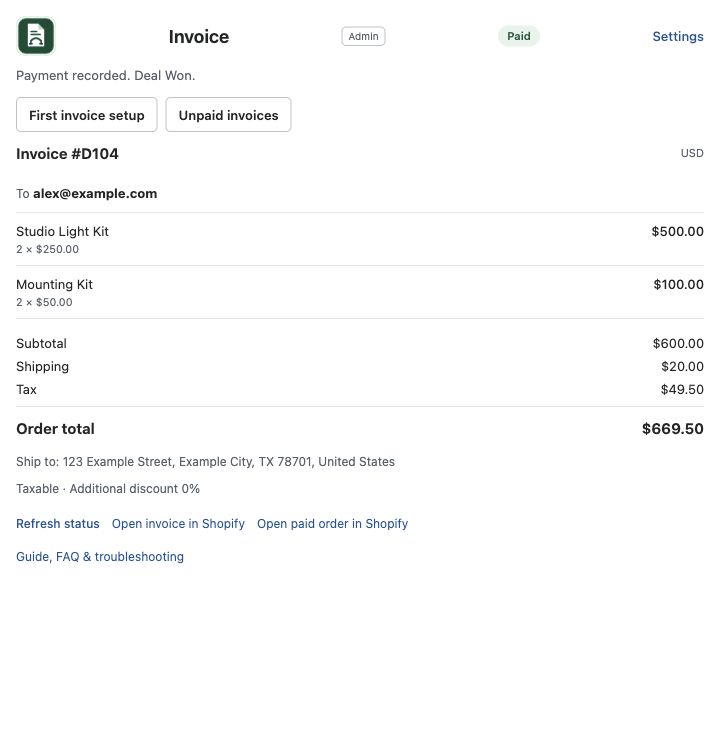
For a standard invoice, confirmed payment changes the original deal to Won.
Check the order total and payment history, then use Open paid order in Shopify for the Shopify record.
Look in the deal history for Invoice Sent and in Files for the invoice copy. Payment activity is recorded in the configured commerce history field.
Allow time for background processing. The current preview host runs its worker about every ten minutes; your deployed schedule may differ.
The paid invoice remains on the original deal with a link to the completed order. Select the image for a larger view.Next: Find and use the invoice copy →
Deal history and files
Find and use the invoice copy
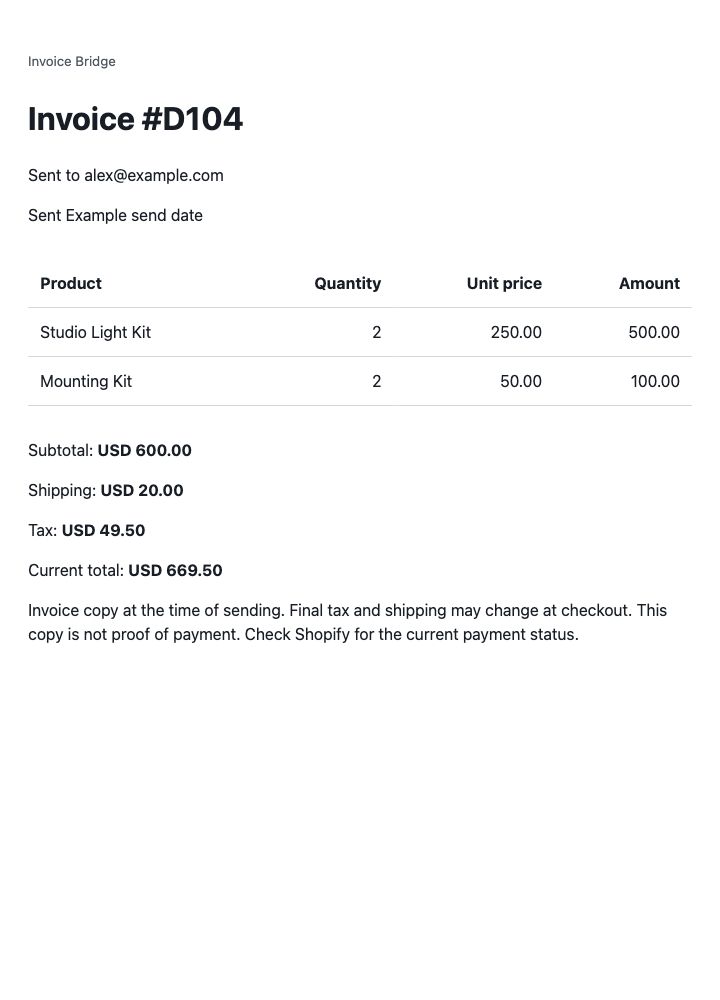
Each sent invoice gets one Invoice Sent note and a printable HTML copy attached to the deal. The copy preserves what was reviewed at the time of sending.
Open the deal’s history and find Invoice Sent. Check the invoice number, recipient, and send time.
Open the deal’s Files tab and download the matching Invoice file.
Open the HTML copy in a browser. Use the browser’s Print option to print it or save a PDF.
Use the Shopify invoice or order link to check the current payment status and final checkout totals.
If the invoice was sent but its copy needs review, ask an administrator to check both systems before retrying.
A payment plan uses separate Shopify payment invoices linked to one Pipedrive deal. It does not require Shopify Plus payment terms. An administrator must enable the feature first.
Before creating the first invoice, turn on Deposit and balance invoices.
Review the product total and required deposit percentage. Adjust the percentage only if your administrator allows it and the minimum is met.
Enter the customer’s shipping address and the agreed shipping quote. Check the address carefully because the plan uses it for tax and stock handling.
Create the deposit invoice, review its totals and recipient, then send it. Retype the email only if the company rule is enabled.
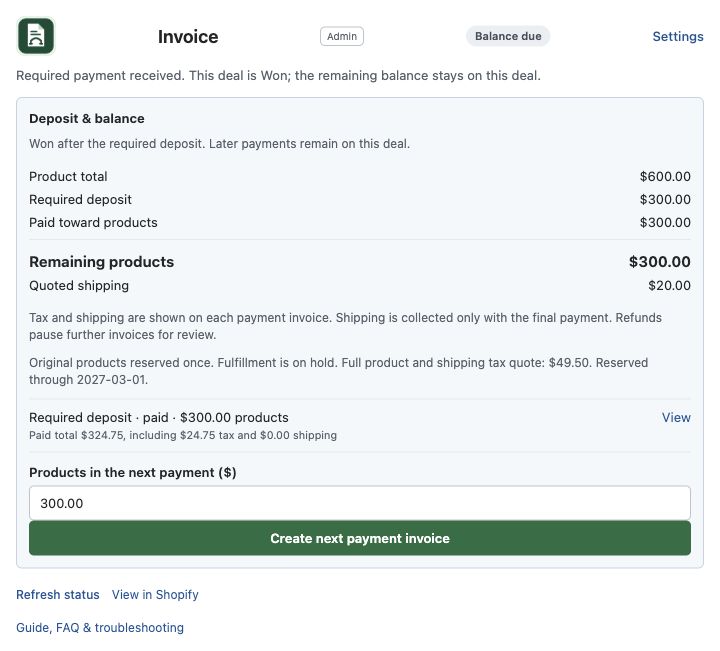
Once the required deposit is paid, check the plan summary. By default, the deal becomes Won at that point and the unpaid product balance stays visible.
After the deposit, the summary shows the original product total, paid amount, and remaining products. Select the image for a larger view.Next: Request the next payment →
Progress and final invoices
Request the next payment
Use the same deal for every later payment. The plan keeps the product balance together even after the deal becomes Won.
Wait for the current payment invoice to be paid or canceled. Only one payment invoice can be unpaid at a time.
Enter Products in the next payment. Request a progress amount or the full remaining product balance.
Choose Create next payment invoice. Review the amount, tax, recipient, and shipping.
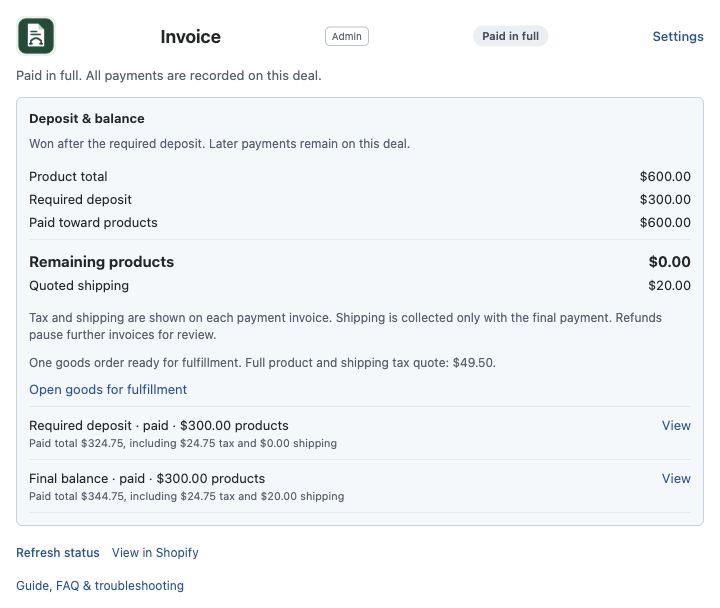
Review the recipient and send. Retype the email only if the company rule is enabled. Shipping is collected once, on the final payment.
After payment, refresh the plan. Keep all payment invoices and orders with this deal.
When Reserve stock and manage fulfillment is enabled, Invoice Bridge separates the payment requests from the physical goods.
The plan reserves the real product quantities once for 30 days. Check the reservation date and stock status.
Collect the deposit and later payments through their payment-only invoices. Those orders have no physical goods to ship and do not deduct the product stock again.
Wait until all required product payments are received. The deal may already be Won while fulfillment is still on hold.
Choose Open goods for fulfillment when it becomes available. Use that single goods order for picking, shipping, and fulfillment.
If a reservation expires, a product changes, or a vendor result is uncertain, stop and ask an administrator to review the plan.
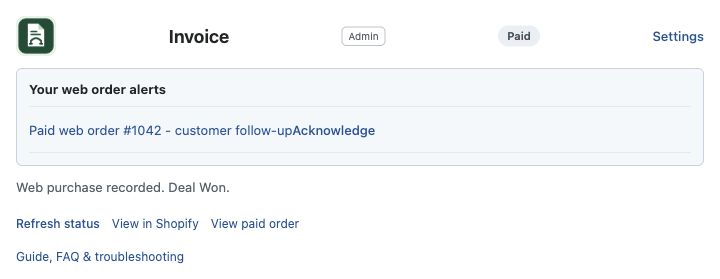
A paid web order can create follow-up work in Pipedrive without becoming a second copy of an invoice sale. The buyer’s email and verified invoice references guide the match.
For a new buyer with no matching person, the app creates a person and lead with available contact and order details.
For a returning buyer with one matching person and organization, the app creates a Won purchase deal linked to those existing records.
The responsible rep sees an alert in their Invoice Bridge panel and receives a follow-up activity when follow-up is enabled.
Open the alert’s deal, review the order and customer details, and complete the follow-up task after making contact.
Acknowledge the panel alert when you have seen it. Acknowledgment does not complete the Pipedrive activity.
A payment result is recorded only when Shopify supplies a confirmed success, failure, or error that can be linked to the appropriate person, lead, or deal.
For a failed payment, inspect the Shopify transaction and the matched record’s commerce history. A failed attempt does not mark the sale paid or Won.
If the customer later pays successfully, the successful transaction is logged as its own result. Repeated delivery of the same result does not create another entry.
Process any customer refund in Shopify. Invoice Bridge records successful refunds and displays the cumulative amount in the configured refund review field.
Review the deal and any payment plan. A refund keeps the deal’s Won status and pauses further plan invoices until reviewed.
Handle any goods return and stock adjustment against the correct goods order. Payment refunds do not justify a second shipment or automatic restock.
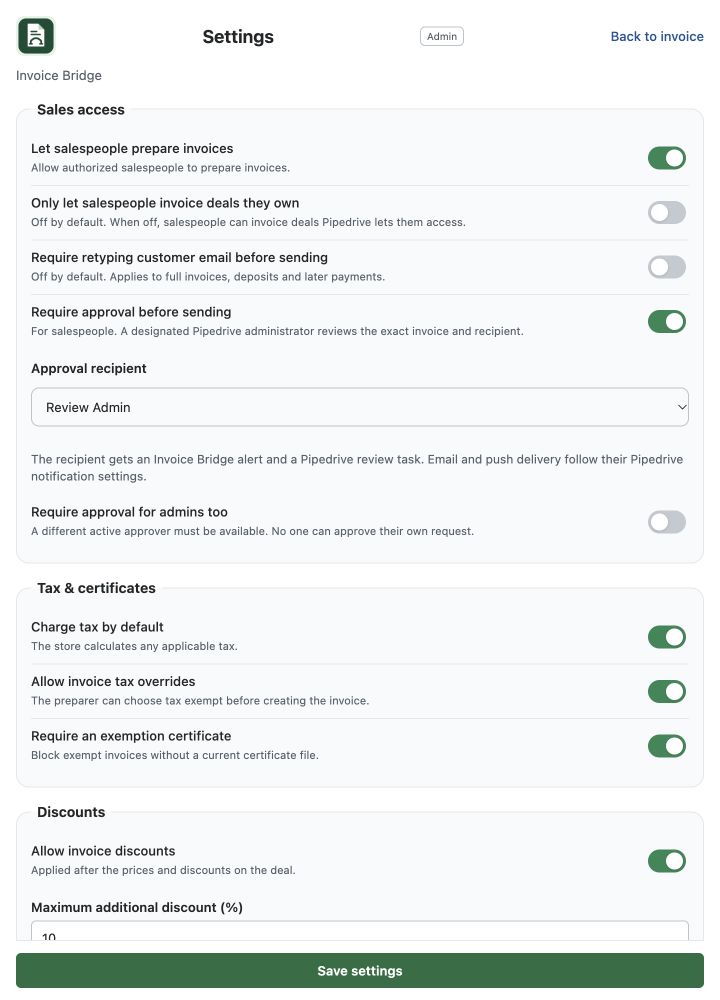
Only a current Pipedrive administrator can change the company’s invoice settings. Open Settings from the deal panel.
Sales access: choose whether salespeople can prepare invoices and whether they must own the deal. The ownership requirement is off by default. When it is off, Pipedrive deal permissions still apply. Enable approval and select a current administrator as the Approval recipient. Any current administrator is also available as a shared queue.
Require retyping customer email before sending: leave this off for direct sending from the reviewed draft, or turn it on to require the preparer to type the exact recipient before every full invoice, deposit and later payment. It is off by default.
Turn on Require approval for admins too if needed. A different active administrator must be available; no one can approve their own request.
Tax & certificates: set the tax default, allow or lock invoice overrides, and decide whether exempt invoices require a certificate.
Discounts: enable extra invoice discounts and set the maximum percentage.
After a web purchase: turn on rep alerts and tasks, choose whether both distinct person and organization owners should be included, and set the business-day follow-up delay.
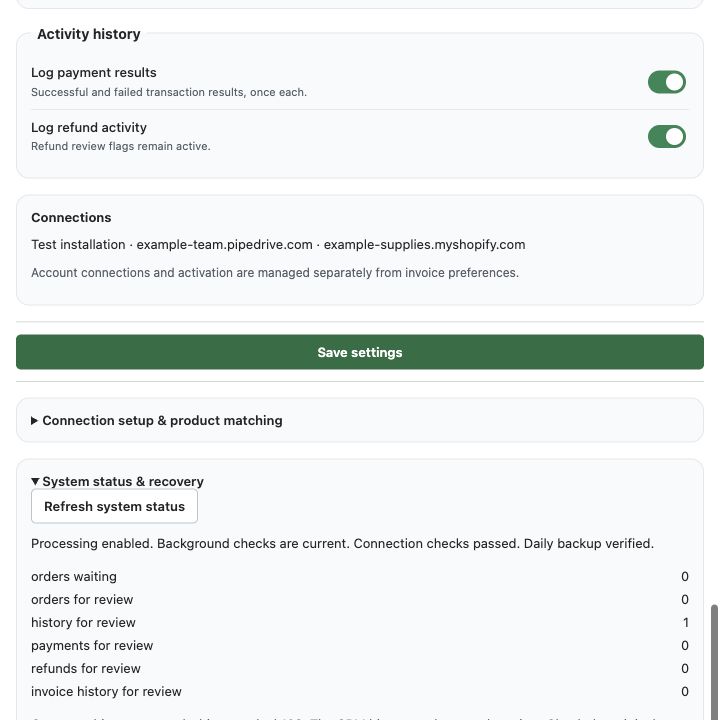
Activity history: choose whether to log payment and refund activity, then Save settings. Refund review flags remain active.
Company rules are saved by a Pipedrive administrator and checked again before sending. Select the image for a larger view.Next: Set deposit defaults and limits →
Administrator
Set deposit defaults and limits
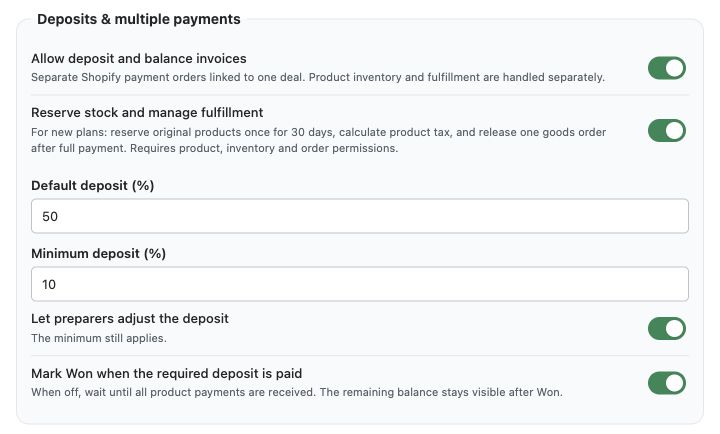
Deposits are off for a fresh installation until enabled. Decide how your team will collect and fulfill these sales before turning the feature on.
Turn on Allow deposit and balance invoices.
Choose whether new plans should Reserve stock and manage fulfillment. This requires the approved product, inventory, and order access.
Set the default deposit and the minimum allowed percentage. The minimum cannot exceed the default.
Choose whether preparers can adjust the deposit. Decide whether the deal becomes Won after the required deposit or after all product payments.
Save settings and test one complete plan with your product, tax, and shipping configuration before the team uses it.
Use Settings > System status & recovery when an update takes longer than expected or a record needs review.
Choose Refresh system status. Check whether processing is enabled, background checks are current, the connection is healthy, and the daily backup was verified. A planned processing pause can still have current background checks.
Choose Check connections. Each failed check explains what could not be verified and where to fix it, including currency, product matches, the checkout domain, CRM fields, stages and managed-deposit permissions.
Review waiting orders, history, payments, refunds, invoice copies, stock handling and approval tasks. Each review item explains which original record to inspect and which recovery action is allowed.
Retry checked update is for an existing history, payment, or refund update after review. It does not authorize creating another contact, deal, invoice, or shipment.
Escalate uncertain sends, record creation, stock changes, missing backups, or repeated failures to the person operating the integration.
Open Invoice Bridge from Shopify as an authorized store user, or use your current Pipedrive administrator session, to manage the workspace. Each store/company pair keeps separate connections and records.
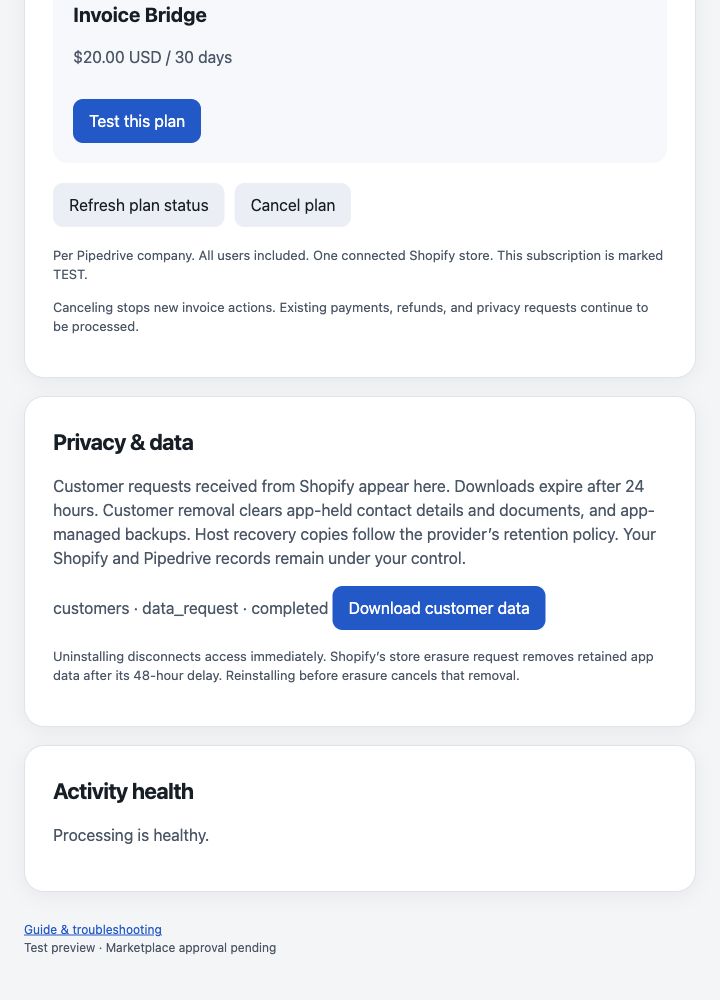
Choose Refresh workspace to reload connections, company agreement, plan, privacy requests and activity health. Activity health explains a processing pause, waiting agreement or plan, stale worker and updates that need review separately.
Use Refresh plan status after approving or changing the app plan in Shopify.
To cancel, choose Cancel plan, review the inline confirmation, and confirm. New invoice actions stop after cancellation.
Existing payments, refunds, and privacy requests can continue to reconcile while the processor remains enabled. An operator pause also stops commerce updates.
For a completed customer data request, choose Download customer data within 24 hours. The export covers app-held records for that request.
Removing an individual salesperson’s Pipedrive app access revokes only that user. Removing the service installer disconnects the company. Shopify uninstall stops store access; its later store-erasure request removes retained app data unless the merchant reinstalls. Source Shopify and Pipedrive records remain under the merchant’s control.
Customer data requests and activity health belong to the current workspace. Select the image for a larger view.Next: Use more than one company →
Separate workspaces
Use more than one company
Install and authorize each store/company pair separately. Check the account names each time you open the app or approve a plan.
Use one Shopify store and one Pipedrive company per workspace. Each pair has its own app subscription.
Open the app from the store you intend to work in, then verify its Pipedrive company under Connections.
Set product matches, invoice rules, follow-up owners, and record fields for that company.
Keep work in that workspace. Changing a URL does not switch a company’s connection or grant access to another company.
After a reinstall, reconnect the intended company and check that previous invoices and paid records are still present.
The message names the part that needs attention, explains what the app could verify, and tells you what to do next. A connection problem does not mean an invoice failed or a deal is empty.
Read the cause first. Shopify, Pipedrive, app subscription, invoice rules, certificates, inventory, email, and app hosting have different checks. Follow the named step instead of changing unrelated settings.
For a stale screen, choose Refresh status on the deal, Refresh products for its product list, Refresh list for organization certificates, or Refresh workspace in app settings. After a plan approval, choose Refresh plan status.
If the message says the result could not be confirmed, check the existing invoice, order, organization file, approval task, or deal history before trying again. A timed-out request may have finished. Do not create, send, reserve, or ship a second copy.
Salespeople can correct their invoice choices, confirm the recipient, refresh data and request approval. A Pipedrive administrator changes company rules, product matches and CRM fields. The Shopify store owner handles store permissions and plan approval. The app operator handles hosting, sender setup, processing and backups.
If automatic alerts could not refresh, the invoice still loads and the panel says which notices may be out of date. Choose Refresh status. Check the assigned Pipedrive activity while an administrator reviews a connection problem.
If the Pipedrive panel did not start, choose Reload panel. If it still fails, reopen the deal in a fresh browser tab. An administrator can check the installed app and panel URL. Keep browser security settings enabled.
A confirmed Pipedrive access problem explains the permission check. It does not say that the deal has no products. Select the image for a larger view.Next: Common questions →
QUICK ANSWERS
Common questions
The panel keeps the decisions and actions close at hand. These answers explain the details without crowding the invoice screen.
Why is the Shopify order link empty? Creating an invoice creates a Shopify draft first. The invoice link opens that draft. After successful payment and the next background update, the paid order link and order details fill in on the original deal. Refresh status if the panel was already open. The app checks waiting invoices every minute while the panel is visible; the host worker runs on its configured schedule.
Does an invoice payment create another deal? No. A payment carrying the original invoice reference updates the original deal. A separate web-store purchase can create a new Won deal for an existing customer, or a lead for a new buyer. Repeated payment events are matched to the same order.
Why does a field say Web order details for an invoice? That is the custom field name chosen in this CRM. The mapped Order details field also holds paid invoice checkout totals and shipping information. Administrators choose the field in Settings; the app does not rename your CRM fields.
Will customers see order-ledger-bridge in the invoice link? Customers follow their store’s approved checkout domain. Your Shopify admin links use your store’s own myshopify.com address. Invoice Bridge is the app name. The development store and sandbox host may retain older technical names; a final app domain is a separate launch configuration.
What does the role label mean? Admin and Salesperson reflect the current Pipedrive role. Salespeople use only the options enabled by an admin. The ownership setting can limit invoicing to deals they own. Company rules are visible but locked for salespeople. Only admins change access, approvals, certificate requirements, tax defaults, discount limits, and recovery settings.
Can a returning customer reuse a tax certificate? Yes. Select the file already attached to the deal’s organization and confirm it is current and applies to this sale. No repeat upload is needed. The app rechecks the organization, file and expiry before sending. A removed, changed or expired document needs a fresh review.
Why did the invoice send without asking me to type the email again? Email retyping is off by default. An administrator can enable Require retyping customer email before sending in Settings > Sales access. The app still checks the saved recipient, current invoice details and any required approval.
Does Copy customer payment link resend the invoice? It copies a current customer checkout link after checking Shopify. You send it in your own message. Invoice Bridge records no new invoice email or duplicate sale from copying the link.
Start with the current invoice state and the original Shopify order. Keep their references together while you check the result.
Read the cause and source of an error
Read the named source and cause, then follow its next step. A Shopify connection or permission problem belongs with the store owner; Pipedrive authorization, membership or deal access belongs with the Pipedrive administrator. Subscription messages name missing, canceled, pending, expired or unverified plans. App configuration messages identify an installation or company pause. If the app could not confirm the result, inspect the saved record before repeating the action. An unknown cause is not blamed on Shopify or Pipedrive.
Start here for display or stale-status problems
Start with Refresh status on a deal. Use Refresh products for a changed product list, Refresh list for organization certificates, and Refresh workspace in app settings. After a plan change, use Refresh plan status. If the embedded panel did not start, use Reload panel, then open the deal in a fresh browser tab if needed. These actions reload information. They do not grant permission, approve a plan, resume processing or send an invoice.
The panel shows Something went wrong in Chrome
Choose the Pipedrive panel refresh control first. If Invoice Bridge shows its own startup message, choose Reload panel. Reload the deal, then open it in a fresh normal browser tab if it still fails. If normal use keeps failing, authorize your own user in the intended company and ask an administrator to check the installed app and panel URL. Keep cookie and browser security protections enabled. If the panel becomes blank immediately after an app update, the app operator should check that every deployed panel file is present and matches the release. Restore an incomplete upload from the release package and verify it before testing again.
The paid order link or order details are blank
For a Draft or Sent invoice, no completed paid order has been linked yet. After payment, allow the background update and refresh status. If Shopify shows Paid but the fields stay blank, an admin should check the Paid order link and Order details mappings in Settings, then the recovery queue. Keep the original invoice and deal. The Invoice link opens the draft, while Open paid order in Shopify opens the completed order.
A certificate is already on file but is not listed
Check that the deal links to the correct organization and that the file is attached directly to that organization. Choose Tax exempt, then Refresh list; use Load more for a long file list. PDF, PNG, and JPEG files are supported. A file attached only to a person or an older invoice must be attached to the organization once. Do not reupload the same organization file for each deal.
The selected certificate cannot be confirmed or sent
Open organization files and review the actual document. Choose the file, check its expiry, then check the confirmation box. A changed organization, changed file, removed document, expired certificate, or new certificate requirement blocks sending. Refresh the list and confirm a current file. An admin can correct an incorrectly recorded date in the expiry field when preparing the next invoice; no repeat upload is needed. Older drafts using a different date need a fresh invoice review. Upload a renewed document only when the actual certificate has changed.
Saving a certificate timed out
Open the organization’s files first. The upload may have succeeded. Refresh the list and select the saved file. Retrying the same file lets the app inspect its saved upload reference; it does not blindly create another attachment. If the app says the upload needs review, ask an admin to check the organization files before uploading anything else.
A PDF attachment opens as code or is blocked
Download the attachment and open it with an appropriate viewer. The invoice history copy may be an HTML file, which can be opened in a browser. For a certificate on the organization, open the organization’s Files section. Older invoice-only certificates use a short-lived, one-use download link from the authenticated panel.
A checkout link fails or the branded domain is not ready
An admin should check the approved checkout hostname, its DNS and HTTPS status, and Shopify’s domain settings. Keep the existing invoice reference and inspect the Shopify draft before sending a new link. Do not bypass a browser certificate warning.
A plan is missing, canceled, or awaiting approval
Open Invoice Bridge from Apps in Shopify and check Your plan. A Pipedrive administrator or the Shopify store owner can choose a plan or select Review in Shopify to approve a pending plan. After approval, choose Refresh plan status, then return to the deal and choose Refresh status. If a plan is already approved, refresh its status before choosing another subscription. Salespeople should ask their administrator to handle billing. Development stores use a no-charge TEST plan.
Invoice processing is paused
Invoice Bridge configuration identifies an app processing setting. Turned off for this app installation means invoice updates are disabled across that installation. Paused for this company means company processing was paused separately. The app administrator can review the processing configuration and resume the correct company, then choose Refresh status. Check the app plan separately; plan approval does not remove a processing pause.
New invoices are blocked by the service agreement
Ask a current Pipedrive administrator or the Shopify store owner to open Invoice Bridge app settings and review the current company agreement. Salespeople cannot accept it. If the page says Review draft, the operator must finish publication before commercial acceptance is available. Do not approve a second subscription to solve this. Existing payment reconciliation, cancellation, and privacy requests remain available.
The panel is missing or access is denied
Authorize your own Pipedrive user with the approved installation link after an administrator has connected the company. Open a deal you can access in the intended company. Reopen the panel to refresh the signed session. Ask an admin to check active membership and invoice access.
Create invoice fails or products are missing
If the panel shows No enabled products found, add or enable products in Pipedrive, then choose Refresh products. Otherwise, check that the deal has enabled products with supported quantities, USD prices, and saved product-to-variant matches. Refresh the preview after correcting the deal. Ask an administrator to run Check connections.
Confirm and send is disabled
This button appears only when the company requires email retyping. Enter the exact recipient shown. Retyping is off by default; only an administrator can enable it in Settings > Sales access. Check any message about a blocked preview, pending approval, invalid certificate or app plan. If the draft changed, refresh status and review the current recipient and totals.
Approval no longer works
The draft, recipient, policy, or approver’s role may have changed. Refresh and request a review of the current version. A declined version must be revised or replaced. No one can approve their own request.
The approver did not see the request
Check the Approval recipient in Company rules and that the person is an active Pipedrive admin. Open that user’s Invoice Bridge panel and assigned CRM task. Email and push depend on Pipedrive preferences. A task marked for review needs an administrator’s recovery check before retrying.
Company rules are locked
Only current Pipedrive administrators can change company policy. Salespeople can read the rules. Ask your admin to make the change; reopening a settings link does not grant admin access.
My settings changes disappeared
Choose Save settings or Save setup in the section you changed. Keep editing preserves unsaved values; Discard changes reloads the saved values. Another admin’s conflicting save requires a refresh.
The invoice email has not arrived
Check the exact recipient and Sent status, then have the recipient check spam or junk. Sent means the mail service accepted the message; it does not prove inbox delivery. An email-setup message means the app operator must check the sender, reply-to address, mail connection or verification. A rejected-recipient message requires checking the address and mail rejection before retrying. If delivery is unconfirmed, inspect the mail history and invoice status before sending again.
The customer paid but the deal is still open
Confirm the payment in Shopify, then refresh the original deal. Allow the configured worker interval. Check the plan’s Won rule and System status & recovery. Keep the original deal instead of creating another one.
The rep did not get an alert
Check the matched person and organization, their active owners, and follow-up settings. Open the assigned user’s panel and inspect the Pipedrive task. Immediate email or push delivery is not guaranteed.
Tax or shipping differs from the draft
Check the checkout address, store tax setup, exemption choice, and shipping method. Standard checkout can recalculate these amounts. A deposit plan uses its original quote and collects shipping with the final payment.
A certificate download expired
Choose Download certificate again, then Save certificate within 60 seconds. A download link can be used only once. Reopen the authenticated panel if access is denied.
The plan is Won but cannot be shipped
The deposit may have satisfied the Won rule. Wait for all product payments, then use the single goods order. Do not fulfill payment-only orders.
A refund paused the plan
Review the refunded amount, received funds, product allocation, and any goods return in Shopify. Do not request replacement money until an administrator has reconciled the plan.
The screen is stuck on Creating, Sending, Updating, or Canceling
The last action has not been confirmed. Choose Refresh status and check the existing Shopify invoice or order and the Pipedrive deal history. A timed-out request may have succeeded. The app operator must reconcile its saved reference before another create, send, cancel or stock action is attempted.
New invoice actions stopped
Check the correct workspace’s plan status and whether order writes are paused. Subscription cancellation stops new invoice actions. Reconnection, payment review, and privacy processing have separate checks.
You see a possible duplicate
Keep both record IDs and the Shopify order ID. Stop creating replacements, check for another automation processing the same purchase, and ask the integration operator to reconcile ownership. Do not delete records to hide the issue.
Alerts or approvals could not be refreshed
The invoice can still load when a notification check fails. The panel keeps a visible warning naming sales follow-up alerts or approval notifications and says the notices may be out of date. Choose Refresh status. Check the assigned Pipedrive task while an administrator reviews the stated authorization or connection issue. A successful later refresh clears the warning.
Check connections says Needs setup
Read the cause and next step under that check. Load available choices to correct a missing CRM field or stage. Add product-to-variant matches for missing mappings. Compare the checkout hostname with Shopify domains and verify DNS and HTTPS. The store owner reviews missing deposit permissions. Save the corrected setup, then run Check connections again. A failed lookup does not prove a product or field was deleted.
This deal belongs to someone else in Pipedrive
Your administrator turned on Only let salespeople invoice deals they own. You may still see the deal in Pipedrive. Open a deal you own or ask your Pipedrive administrator to review this invoice.
The app settings page cannot load
Choose Refresh workspace. If sign-in could not be confirmed, reopen Invoice Bridge from Apps in the intended Shopify store, or as a current Pipedrive administrator. A browser connection error or unreadable response does not confirm that the previous save or plan change failed. Check the saved result before repeating it.
Shopify or Pipedrive is limiting requests
Wait one minute, then refresh the relevant status before repeating the action. Do not repeatedly click Create or Send. If the limit continues, an administrator can check other connected automations and the app operator can inspect request volume.
The sender or mail connection is not configured
The app operator must configure a supported Shopify delivery or authenticated mail connection, verify its sender and reply-to address, and complete the delivery check. Salespeople can review the customer email but cannot fix server mail settings. Check the invoice and mail history before trying another send.
There is not enough stock or the reservation expired
For a shortage, an administrator checks Shopify inventory and the complete deal quantities before collecting a deposit. For an expired reservation, inspect the original goods draft and current availability before collecting another payment. Keep the single original goods reference. Do not create another reservation or fulfill a payment-only order.
The goods or payment plan changed outside Invoice Bridge
A product, tax, recipient, payment or reservation check can block another payment. An administrator compares the original plan, reserved goods, quotes, payments and refunds in Shopify. The app operator reconciles an uncertain reservation or shipment. Refreshing does not bypass the mismatch.
The customer data download is unavailable
Customer data exports are available for 24 hours after completion. Check Privacy & data in the Shopify workspace that received the request. If its export expired or was removed and a current copy is needed, request a new export through Shopify. App-held customer data is not downloaded from another company workspace.
Background processing or backups need attention
Activity health names a stale worker, waiting plan or agreement, retrying updates, or a privacy request that needs review. A Pipedrive administrator can inspect System status & recovery on a deal. The app operator checks the worker schedule, private storage and verified backups. A plan approval does not resume paused processing, and a recent worker check does not prove a backup is usable.
The app says it could not validate the request
The request did not include usable information for the current app version. Refresh the current invoice or reopen settings, review the saved values, then try the action again only after checking whether the previous attempt finished. An administrator can check Connections and the deployed app version if the message returns. Unknown technical exceptions are not shown as raw server details.
The setup checklist still shows missing products
Open connection setup, add every listed product or variation match, and save setup. Return to the deal and refresh the checklist. A plan or service-agreement item is completed in Invoice Bridge in Shopify by an administrator or store owner.
The customer payment link cannot be copied
Refresh status and check that the invoice was sent and is still unpaid. Review any message about a changed recipient, payment plan or checkout website. If clipboard access is blocked, select and copy the displayed link. An administrator can check Sales access for your user.
An invoice is missing from Unpaid invoices
This view covers sent Invoice Bridge invoices in the connected company. Use Next page if available and refresh after payment processing. Salespeople see only deals they currently own. Paid, canceled, draft and unsent invoices are excluded.
A follow-up task could not be confirmed
Check the original deal’s activities and current owner before creating a task manually. The app keeps an uncertain request for review and does not repeat the vendor write. A confirmed task is reused on later clicks. Reschedule the existing task for another follow-up. After an app update, the operator should also verify that the bundled database upgrade completed before retesting new actions.
STATUS REFERENCE
What the status means
Draft
Created for review; no invoice email has been sent.
Pending approval
Waiting for the selected current admin. The invoice has not been sent.
Changes requested
The invoice remains unsent. Revise or replace it and request a fresh review.
Sent
Accepted by the mail service. Receipt and payment still need their own confirmation.
Paid
Confirmed payment is linked to this invoice or purchase.
Balance due
The required deposit was received, but product payments remain.
Review
An administrator or the integration operator needs to inspect the result.
Canceled
The unpaid invoice was retired. Its history remains.
Refund review
A successful refund is recorded. Review the sale; Won is retained.
Supported release scope: USD; one Shopify store and one Pipedrive company per workspace. Up to 50 product lines per invoice, with quantities of up to 10,000 units per line. Multi-store connections to the same Pipedrive company, currency conversion, and bundles are outside this release.